
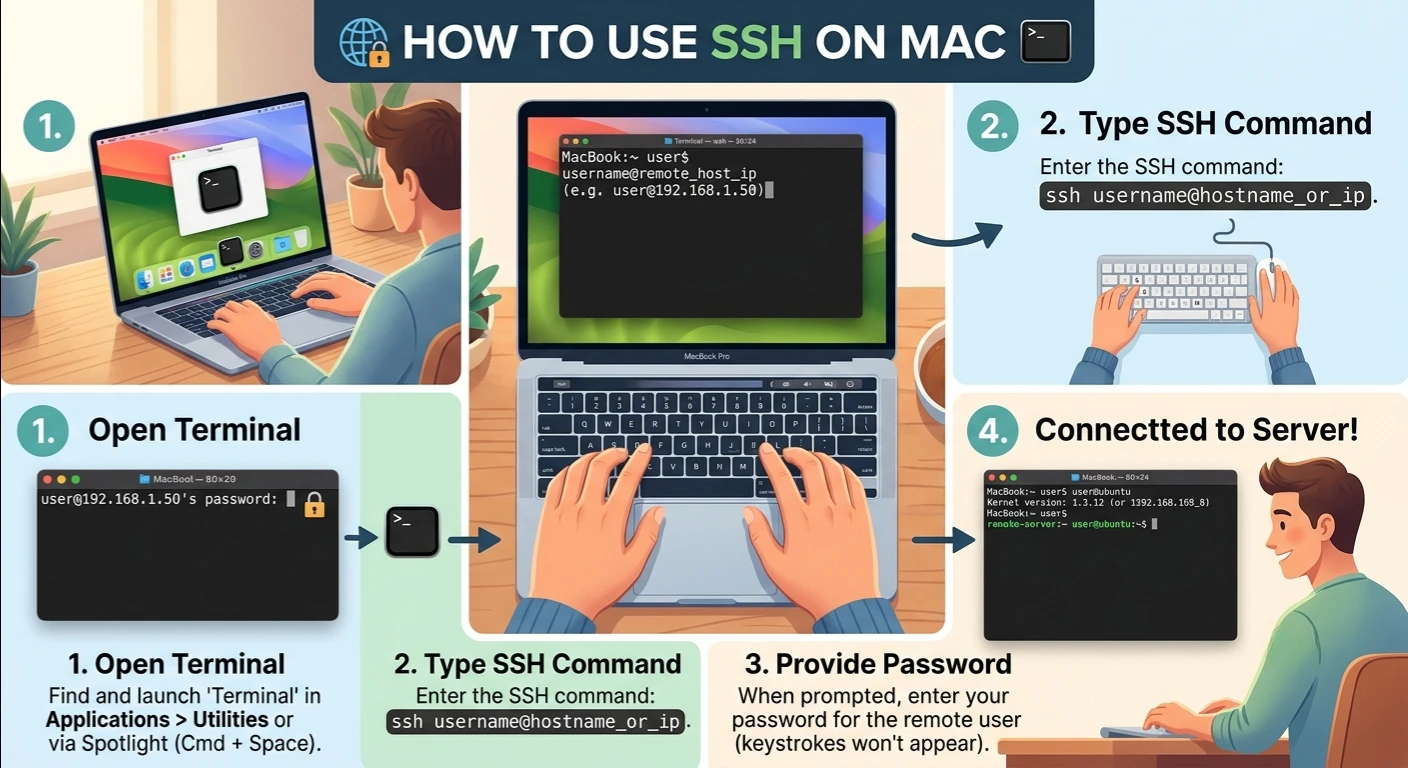
If you’ve ever asked yourself the question of how to use ssh using mac, then you’re in the right place. One of the most secure and dependable methods of communicating with a remote server from your Mac is by using Secure Shell (SSH). SSH securely connects you to a remote machine through encryption, whether you manage a website, access a VPS, edit files, or perform server maintenance.
The good news is that macOS comes with a built-in SSH client, so you don’t need to download anything. This article will go through the necessary commands and best practices for the first time user of ssh and how to use it using mac.
What Is SSH?
Secure Shell (SSH) is a networking protocol that makes a secure connection between a computer and a remote computer. However, with the more traditional remote access solutions, other people can easily copy your logon and data.
You can connect securely with mac via ssh with the built-in mac ssh terminal. SSH is essential to developers, system administrators, and website owners for server management, transferring files, software installation, and troubleshooting.
The Reasons to Use SSH on Macs
Having a built-in utility called ssh client mac is one of the best things about macOS. No third-party application is required to start to work with remote servers. Just open the terminal app mac, type a command and securely connect.
There are several advantages to using SSH on Mac:
- Secure encrypted communication
- Access remote server with speed and security – Mac. Secure and quick remote server access mac.
- No additional software required
- Reliable server administration
- Simple command-line interface
- Supports Linux, Unix, and cloud servers
Requirements Before Connecting
Please ensure that you have the following before you learn how to use ssh using mac:
- A Mac computer with MacOS installed.
- The access to the Terminal application.
- An IP address or host name of a server.
- A valid username.
- A password, or an SSH private key.
- Internet connectivity.
The majority of hosting companies will issue these details once you’ve set up your VPS or hosting plan.
Open the Terminal on MacOS
To open the terminal app mac, execute the following command.
This can be accomplished in a number of ways:
- Press Command + Space to open Spotlight search.
- Type Terminal.
- Press Enter.
Alternatively, you can access Terminal from:
Applications → Utilities → Terminal
After Terminal opens, you can start to use the commands of mac terminal ssh.
Configuring a SSH Server
The default SSH command is straightforward:
ssh username@server-ip
For example:
ssh admin@192.168.1.10
This command can be used to start an ssh connection mac to the remote server with the ssh client Mac.
When you first connect, here is a message you’ll see:
The authenticity of the host can’t be established.
Are you sure you want to continue connecting (yes/no)?
Type:
yes
Then press Enter.
Then type in your server password.
If it is correct, your ssh login mac will succeed, and you will be able to log in to the remote system.
Using a Different SSH Port
Some servers don’t use the default SSH port (22).
If your host offers you another port then use:
ssh username@server-ip -p 2222
Change the port number 2222 for your own port number.
This command sets up the ssh connection Mac via the given port.
Basic SSH Commands
After connecting, you can start to manage your server.
Examples of the use of the ssh command mac include:
- View Current Directory: pwd
- List Files: ls
- Move into a Folder: cd folder-name
- Create a Directory: mkdir newfolder
- Delete a File: rm filename
- Restart the Server (Linux): sudo reboot
These are the commands that are useful for conducting daily administrative operations when working remotely with a Mac.
Disconnecting from SSH
Once completed, disconnecting will be done safely by typing:
exit
Or simply press:
Ctrl + D
You will be disconnected from the SSH session and log in to your local Mac Terminal.
Use SSH Keys for Improved Security
While it is effective, SSH keys offer better security than passwords.
Generate a key pair on your Mac using:
ssh-keygen
The command creates:
- Private Key
- Public Key
Copy the public key to your server, but leave the private key on your Mac computer.
Secure shell mac uses SSH keys to enhance secure shell mac authentication and minimizes the risk of password attacks.
Common SSH Errors and Solutions
Permission Denied
This usually means:
- Incorrect username
- Wrong password
- An SSH key has not been set up correctly.
Check your login information with your hosting company.
Connection Refused
Possible reasons include:
- The SSH service is not running.
- Firewall blocking port 22
- Incorrect server IP
Ensure SSH is enabled on the server.
Connection Timed Out
This can occur due to:
- Internet issues
- Wrong IP address
- Network firewall restrictions
Verify the server address in your network.
Best Practices for SSH on Mac
The server is protected by following security best practices.
- Use SSH keys as much as possible.
- Keep macOS updated.
- If not needed, disable root login.
- Use strong passwords.
- If necessary, change the default SSH port.
- Log out of your work after you have finished.
- Always do not give out private SSH keys.
The habits will enhance security, as well as general remote server access mac.
Benefits of Using SSH on MacOS
The following are some of the more practical benefits of using MacOS ssh.
The built- in SSH client is very light, fast and reliable. There’s no need to install it – it comes preloaded with macOS. Terminal enables a simple management of websites, cloud servers, VPS and Linux systems.
While working remotely, sensitive data is protected as all communication is encrypted using SSH.
Conclusion
After being familiar with SSH, it becomes easy to manage remote servers. All of this can be done securely from the Mac to the server, and you can manage files, install software and do maintenance. This is a quick and secure method of connecting to remote systems via SSH without installing extra software, using the built-in SSH client of macOS. With proper security measures, you can work safely and confidently while maintaining the security of your server.