
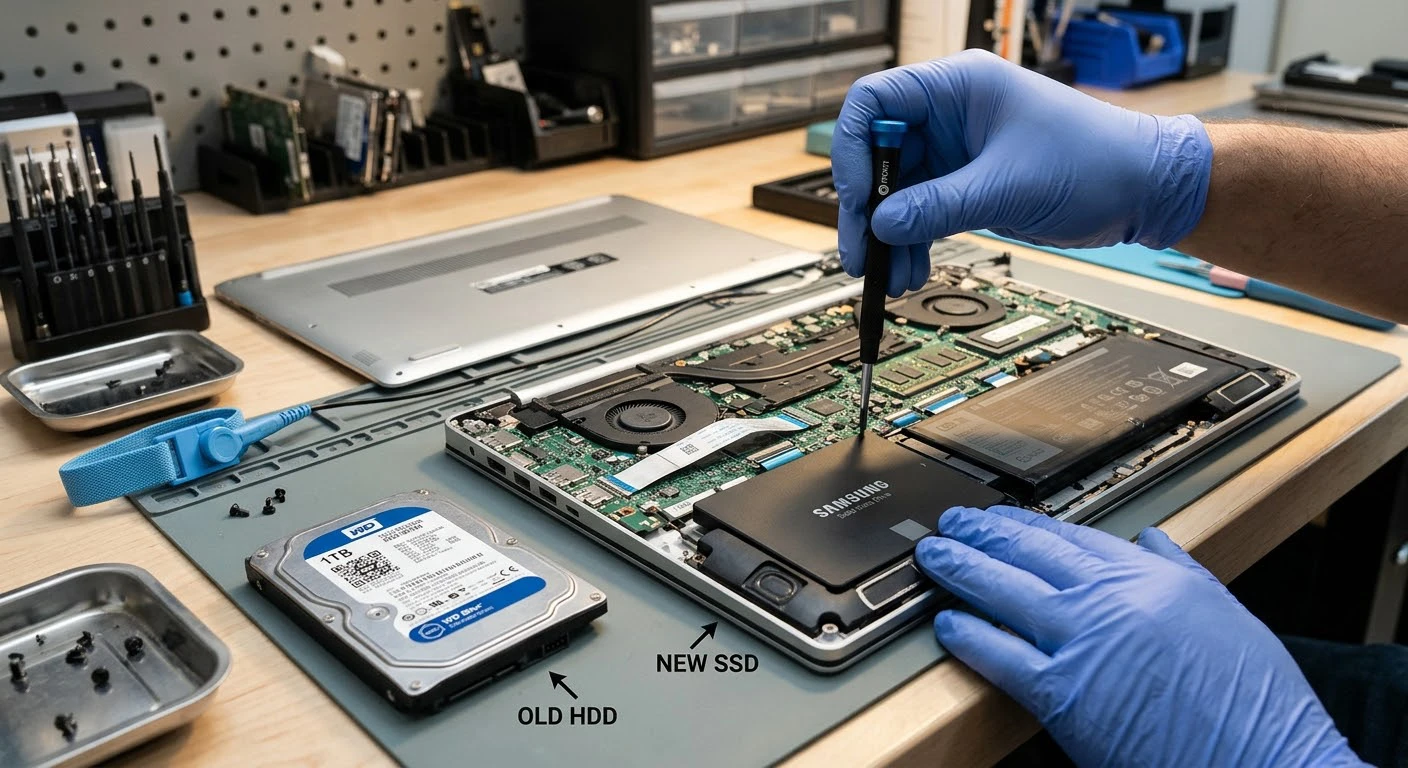
Does your computer take a lot of time to start up? Does it freeze when you open a couple of browser windows or does it have to wait for you to open a small document? Don’t immediately point the finger at the processor or RAM, go to the hard drive first. That old spinning disk is the actual culprit 99% of the time.
If it is an older machine, the best thing you can do is to replace it with an SSD. The cost is much lower than buying a new computer, requires only about an hour and you will notice the difference when you turn it on.
I have seen it done in laptops ranging from 10 years old to gaming desktops and the customer response is generally the same, “Why didn’t I do this sooner”? In this guide, you will learn how to select an appropriate drive and transfer Windows without losing a single file.
Hard Disk Drive vs Solid State Drive
HDD (hard disk drive): Data is stored on magnetic plates that are spun with a small mechanical arm that reads and writes. It is slow, noisy and breakable due to all those moving elements. You don’t want to drop a laptop when the HDD has its power on.
An SSD or solid state drive is a disk with no moving parts. It stores data in flash memory — a type of storage similar to a USB stick but much quicker. So, for you, this means the following:
- Faster boot times: Start-up time is reduced from 1 minute or more to approximately 10-15 seconds.
- Programs are opened almost immediately.
- Quite a bit quieter, cooler, and longer lasting machine.
- Better durability: Bumps and drops are much less of an issue.
For backups and media HDDs are still a good option, especially when you consider the cost per GB. However, if you want to use it for your primary drive, an SSD clearly trumps hard drives.
Switching From HDD to SSD – Is It Worth It?
Yes, for nearly all computers built in the past 12-15 years. This will make a difference if you have a machine with at least 4G of RAM (more is better) and a fairly current processor. The only exception are very old systems with other parts as the limiting factor.
Choosing the Best SSD for Laptop or PC
Don’t look for one “perfect” model. Stick with a trusted brand like Samsung, Crucial, Western Digital, Kingston or SK Hynix.
No M.2 slot? Use a 2.5″ SATA drive such as Samsung 870 EVO or the Crucial MX500. If you’re looking for an NVMe, consider the WD Blue SN580 series or Samsung 990 series. The vast majority of desktops will accommodate NVMe and SATA drives.
Most people require 1TB of capacity these days, and 500GB is minimum.
What Will the Cost of an SSD Upgrade Be?
Not as much as you might think. The prices are likely to fluctuate, but 500GB SATA is relatively cheap and a 1TB SSD will cost just a bit more. NVMe drives are now selling at SATA drive prices. There may be a need for a cheap SATA-to-USB adapter to clone it and a small labor charge if a repair shop performs it. It’s one of the best deals when upgrading a new laptop.
What You’ll Need
- Your new SSD.
- A small Phillips screwdriver.
- A SATA to USB cable or enclosure (for single-bay laptops).
- Cloning software: Clonezilla, etc. or the free software from the manufacturer of the SSD (Samsung Data Migration or Acronis for Crucial/WD).
- A copy of your critical information.
Upgrade HDD to SSD Step by Step
Step 1 – Backup Your Important Data
The process of cloning normally proceeds well, but there can be complications. Make sure to backup all key documents, photos and files on an external hard drive or cloud storage.
Step 2 – Clean Up the Old Drive
The smaller the SSD is, the more data you will need to store on it. Clear up unnecessary files, remove programs and transfer big media files to external media.
Step 3 – Is to Connect the SSD
If the laptop is single bay, install the SSD into the USB adaptor and connect it to the laptop. If you have a desktop or free M.2 slot, install it in immediately.
Step 4 – Clone the Drive
This step copies all over, but doesn’t reinstall Windows. Open your cloning software and choose the old hard drive and the new hard drive (SSD). It replicates your system, programs, settings and files with no errors, and can take from 20 minutes to a couple hours.
If you are seeking a fresh start, then this is for you. Install Windows from a clean ( blank) flash drive and then copy the files to the SSD. Typically runs faster, but takes longer to set up.
Step 5 – Now Time for a Swap
Turn off, unplug from the power and disconnect from the battery if available. On a laptop, take the HDD out of the laptop and slide its bracket over to the SSD and put it back in place. On a desktop, simply install the SSD on either a bay or an M.2 slot and connect the cables.
Step 6 – Boot From the SSD
Power on the computer. If Windows does not boot, press F2, F12, Del or Esc at the boot and set the boot device to SSD.
Step 7 – Check Everything
Once your Windows installation is complete, review to ensure that all your files and programs are present. Also ensure TRIM is enabled, it will generally be enabled by default on Windows.
How to Dispose of the Old Hard Drive?
Don’t throw it away. Use it as a secondary drive in your desktop or place it in an affordable external case to use as a portable hard drive with your laptop. Clean it thoroughly before reuse.
You can even turn it into your own private storage; see our guide on self-hosted cloud.
Common Mistakes to Avoid
- Ignoring compatibility test. Don’t purchase NVMe for a laptop that only supports SATA.
- Not updating the Boot Order in the BIOS.
- Purchasing an SSD that is too small for the information you have.
- Skipping the backup as “cloning always works.
Final Thoughts
Once, it was the prerogative of a technician to install a drive. These days just about anyone can do it, with a little help from a screwdriver and an hour of spare time. Whether it’s an old laptop or the family desktop, an SSD will provide most of the bang for your buck in terms of upgrades: faster boot times, faster app load times, longer battery life and quieter operation.
If your PC is slow, begin with this. It’s probably not necessary for you to get a new computer. All you need is a new drive!