
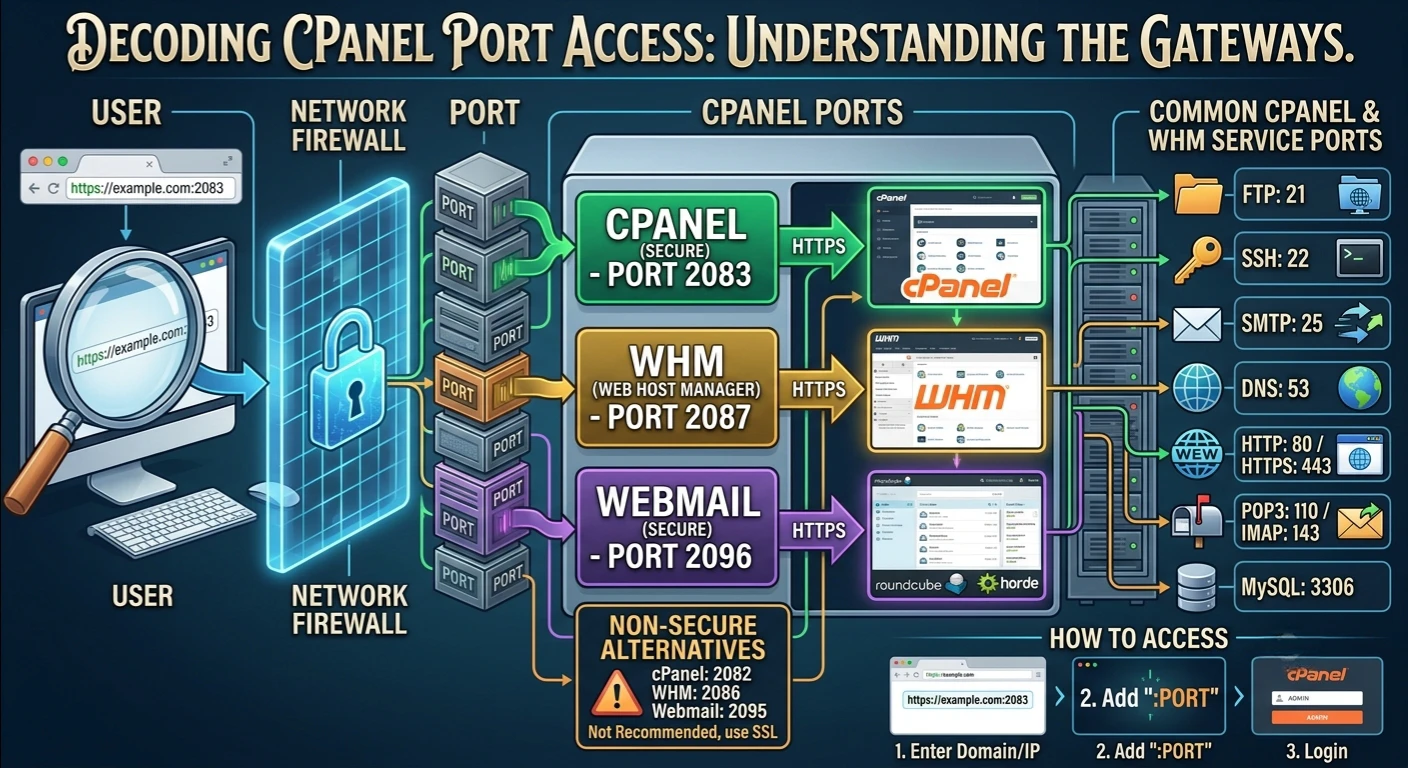
If you’ve ever attempted to log into your hosting account and come across a browser error page, you’ve got a good chance that this is because of a cpanel port issue, in either accessing it with the incorrect one, or a firewall somewhere that’s blocking it altogether. One of those things people don’t think about when it’s working, but once it does break down, it’s “what’s a 1500 Octane? Google it.
This guide explains each of the port cPanel and WHM uses, its purpose and troubleshooting any connection problems that occur more frequently.
Why do cPanel Ports Matter?
All services that are offered on a server such as Web Hosting, email, FTP, Secure login, etc., communicate with the outside world through a specific cPanel port number. Imagine your server has doors, one door for web traffic, one door for email, one door for file transfers, and so on.Imagine your server has doors: one door for web traffic, one door for email, one door for file transfers, etc. You don’t see the number, but if you enter your hosting login URL, it’s actually using one of these doors!
Understanding what is controlled by each of the cPanel ports is very useful in several cases: an email client login problem, manual setup, when a firewall is blocking access and when you’re setting up security rules on the server. When something goes wrong, it is not something that you have to memorize day-to-day, but this is typically the place the answer is there.
Default cPanel Login Ports
These ports let you access your hosting account. cPanel Port 2082 is the standard HTTP port for unencrypted cPanel login access. Although outdated, it may still appear in older configurations or troubleshooting.
The port number today that you’ll use the most is (2083) the cPanel SSL port. It’s the same login point (2082) but in an encrypted manner (HTTPS). If your host provides you a login URL such as: https://yourdomain:2083, then this is the port in action.
TLDR; 2082 was the old non-secure cPanel access port and 2083 was the new cPanel secure port to use. These days, most hosts automatically connect to 2083, so you need not type the port number.
WHM Port Numbers
Maintained by web hosting resellers and server administrators, WHM is the administrative version of cPanel. It operates on an independent set of ports.
The default port of WHM is port 2086 for unencrypted access.
The secure version of WHM is the port 2087. Just like 2083 for a regular cPanel login, it is the secure port you will want to use in virtually any circumstance.
For those using more than one hosting account, or a reseller setup, you will be using the WHM port number quite a bit more than the average cPanel user — and for security reasons, this should be 2087.
Use the following table to determine the cPanel and WHM ports.
| Service | Port | Type |
| cPanel Login | 2082 | HTTP (unsecured) |
| cPanel Login | 2083 | HTTPS (secure) |
| WHM Login | 2086 | HTTP (unsecured) |
| WHM Login | 2087 | HTTPS (secure) |
| Webmail | 2095 | HTTP (unsecured) |
| Webmail | 2096 | HTTPS (secure) |
A cPanel server port list shows the interfaces cPanel uses, along with ports for services such as email, FTP, and web traffic.
cPanel FTP Port and File Transfer Access
When you transfer files to and from your hosting account, it’s a different set of ports.
The standard port used by the cPanel FTP service for non-encrypted FTP connections.
cPanel Email Ports
The place most people get confused is with email, and there are multiple protocols – and two versions of each.
SMTP (Sending Mail)
Standard, typically blocked by Internet Service Providers (ISPs) to thwart spam abuse, – port 25.
- Port 465 – The secure cPanel SMTP port, using SSL.
- An alternative secure submission port, usually recommended in many modern setups to be used instead of port 465.
IMAP (Receiving Mail, Synced Across Devices)
- Port 143 – Standard, unencrypted.
- Port 993 – The secure IMAP port (SSL) is the one you’ll want in almost every case.
All mailboxes use POP3 by default, which downloads emails locally.
- Port 110 – Standard, unencrypted.
- Port 995 – Secure version using SSL.
If you’re configuring some email client (Outlook, Apple mail, Thunderbird, or whatever you’re using), it’s these cPanel email ports you need to get right that decide whether or not you’re able to sync your mail properly without a ton of “cannot connect to server” errors.
cPanel Firewall Port Issues
Many issues with connection problems are not due to cPanel itself, but to how you set up your firewall. If cPanel is configured correctly but a firewall or ISP blocks the port, the connection will time out or get refused.
Final Thoughts
If you are facing problems logging in, if you have to manually configure an email client, or if you are having problems with firewall configurations, understanding which port controls which service will help reduce any guess work.
Use secure ports like 2083 for cPanel and 2087 for WHM, plus encrypted mail and FTP ports, to prevent most connection issues.