
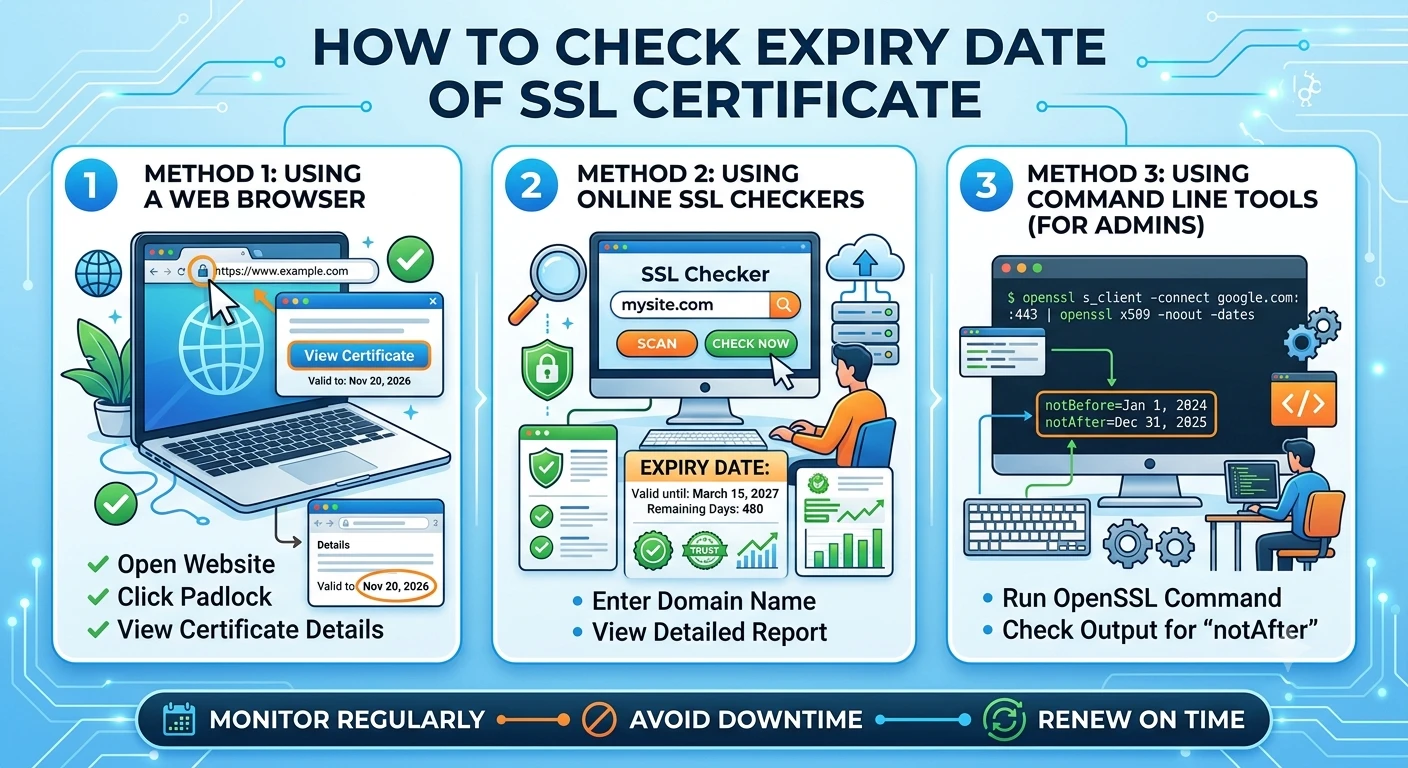
Any site that uses HTTPS is based on an SSL certificate to code data and establish trust with its users. However, not all things are everlasting; there is an expiry to the certificate. Once they do, there are alluring warning pages in the browsers, the search rankings go down, and the trust of users vanishes at once. Understanding how to check expiry date of SSL certificate is one of the basic requirements of any web owner, web developer, and web administrator.
This article discusses all the methods, platforms and best practices that you should keep in mind to ensure that you are not caught up with certificate expiration before it turns out to be an expensive affair.
Why is the Certificate Expiration Date Important?
There is no such thing as a minor technicality like a certificate expiration date because it is a hard deadline that has a severe penalty. Browsers such as Chrome, Firefox and Safari will automatically block all visitors when their SSL certificate expires with a Your connection is not private warning, shutting down traffic and wrecking reputation overnight.
The dates of the expiration of the SSL certificates have an impact on much more than websites. Email security systems, APIs, mobile apps, and HTTPS services require valid certificates. When one certificate expires in a complicated infrastructure, it can cause concurrent cascading failures in many services. Proactive monitoring is the professional standard — not reactive emergency renewals at midnight.
View SSL Plans
Checking Expiry Date of SSL Certificate in a Browser
The simplest tool (or, rather, no tool) and the simplest command that one can perform is to use a web browser to verify the expiry date of the SSL certificate.
Go to the target site by opening your browser. In the address bar, click the padlock icon. In Chrome, clicking on Connection is secure and then Certificate is valid. There is an instantaneous popup that contains the certificate information such as the Valid from date and the Valid to date – the latter is your SSL certificate expiration date.
To view the certificate in Firefox, click padlock, choose Connection Secure and then More Information and lastly View Certificate. Firefox’s certificate viewer shows the certificate’s validity period and issuer details.
This is an ideal technique to test one publicly accessible site within a short time. Server environments, mass screening, and automated monitoring require more powerful methods.
Checking the Expiry Date of An SSL Certificate Using OpenSSL
The best command-line way of checking the expiration date of the SSL certificates is OpenSSL, which is the most reliable and most commonly used one. It supports Linux, macOS, and Windows where OpenSSL is installed – and most importantly, it is completely scriptable and can be automated.
To verify a live certificate of a site, simply enter the following command in your terminal:
echo | openssl s_client -servername yourdomain.com -connect yourdomain.com:443 2>/dev/null | openssl x509 -noout -dates
This returns notBefore and notAfter values. The notAfter line is your expiration date of the SSL certificate which is shown in finer details. This single command is hostile to any publicly available domain, and can be recursed over hundreds of domains in a script.
To verify a certificate file stored on a local disk, rather than on a live server, use:
openssl x509 -enddate noout -in certificate.crt.path.
The two commands provide you with precise expiration times in seconds, which is why OpenSSL is the tool of choice when as an administrator you have to administer certificates in more than just one server.
Where to Locate SSL Certificate on Server?
Understanding where to locate the SSL certificate on the server is essential when auditing infrastructure or when troubleshooting the use of certificates. On Linux, this command finds all the certificate files in the whole filesystem:
find / -name “*.crt” -o -name “*.pem” -o -name “*.cer” 2>/dev/null
When found, run the OpenSSL x509 -enddate command on each file to verify its own expiration date. In the case of web servers in particular, directly inspect your configuration files – in Apache, you are seeking directives of the formSSLCertificateFile in your virtual host files andssl_certificate in your configuration blocks of Nginx. These are the point that point to the actual certificate files that are in use on that server.
Download SSL Certificate off Web Site
There are valid cases when you must download an SSL certificate off a site – to inspect, debug, or import into a different system. OpenSSL does this neatly:
echo | openssl s_client -connect yourdomain.com:443 2>/dev/nu1l | openssl x509 > certificate.crt
This copies the certificate of the server as a local file (.crt file). Examine its full information – expiration date, issuer chain, subject alternative names and signature algorithm with:
openssl x509 -in certificate.crt -text -noout
You can also manually download a certificate in Chrome, by going to Developer Tools, Security tab, View Certificate, Details tab, Export. This method is appropriate to non-technical users who do not want to touch the command line to obtain a certificate file.
How to Delete SSL Certificate?
Being aware of how to remove the files of the SSL certificates will maintain your infrastructure uncluttered and will decrease the perplexity of the old certificate credentials.
On Linux, delete the certificate file with rm /path/to/old-certificate.crt – however, you should always ensure to update your web server configuration to point to the new certificate then restart the server to implement the change safely.
In Windows, open MMC, and go to the Certificates snap-in, right-click on the target certificate and choose Delete. Care should be taken when taking certificates out of the Trusted Root store because this may cause chains of trust to break in other services that may be running on the same device.
On the Mac, open the Keychain Access, find the certificate, right-click, and choose Delete. Confirm when prompted.
Specialized monitoring services such as Datadog, Uptime Robot, Nagios and SSL Labs keep a constant eye on the expiration date of every certificate on all domains and notify you before the date of expiration. Use set alerts to make sure that you have time to respond without panic by setting alert thresholds at 30 days, 14 days, and 7 days before each certificate expiration date.
To have full multi-cloud visibility, services such as Datadog and New Relic are natively integrated with AWS Certificate Manager, Azure Key Vault, and Google Certificate Authority Service via their APIs – providing a single dashboard to visualize all of your certificate expiration dates in your entire cloud infrastructure across all providers.
In smaller teams, a cron job that runs OpenSSL checks against a list of domains that is scripted is a lightweight and effective alternative. Auto loop through a list of domains and send email alerts when any one of the expiration dates of any SSL certificate reaches your set range of time.
Conclusion
Being able to check the expiry date of an SSL certificate is a non-negotiable ability by anyone in charge of web infrastructure. Instead of guessing where the certificates are located or spending hours to create automated systems that may or may not work with third-party certificates on different clouds, with techniques in this article you have the full control of your certificate lifecycle. Be proactive, automate renewals where possible, and your business will never lose traffic, trust, or revenue due to a surprising certificate expiration date.