
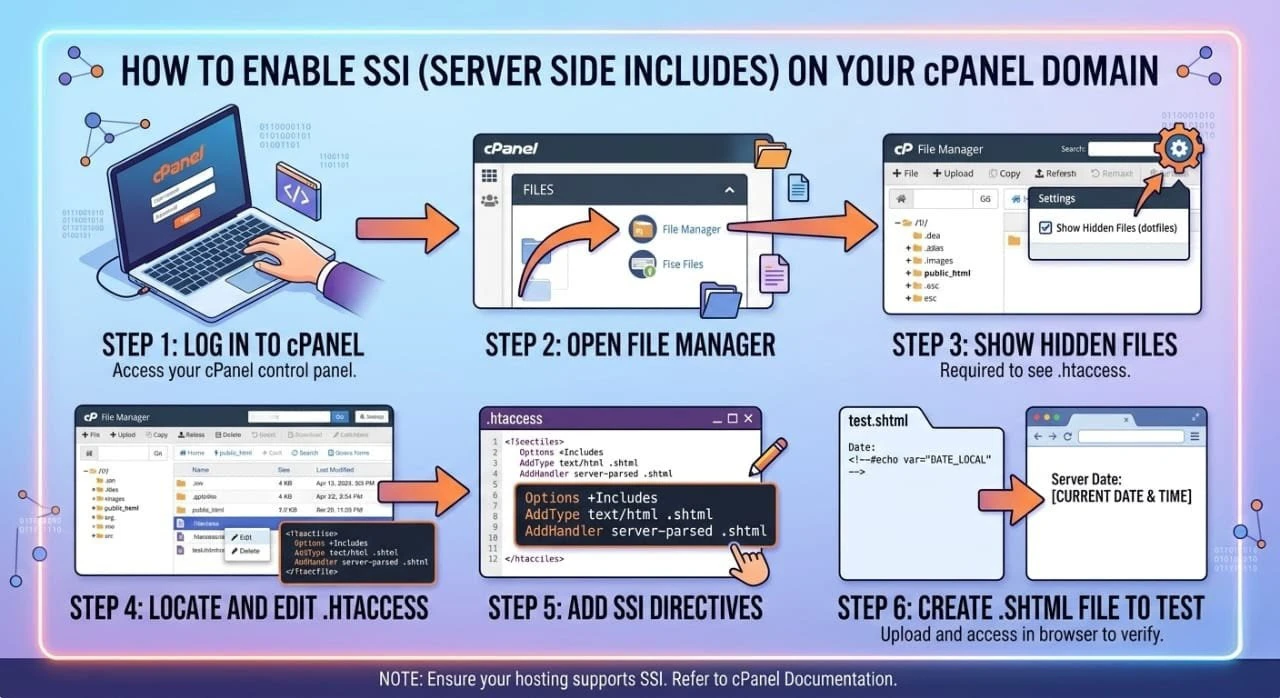

When you have a site on cPanel hosting and you need to add some dynamic features but you do not want to lose time learning some complicated programming language, it is a good idea to learn how to enable SSI on cPanel domain. One of the easiest methods of making your site more flexible, easy to manage is Server Side Includes (SSI).
You will find information on how to configure SSI in cPanel, advanced techniques such as configuration of .htaccess, Apache modules and real-life examples.
What is Server Side Includes (SSI)?
Server Side Includes (SSI) is a simple server side scripting technique which enables you to add reusable content to HTML documents. It is implemented by the mod include Apache module that executes special instructions within your web pages.
Unlike repeating the same code (i.e. headers or footers) on each page, SSI enables you to add them dynamically.
Basic SSI Example
<!–#include file=”header.html” –>
This instruction instructs the server to insert the content of header.html into the existing page.
Other examples of helpful SSI directives are:
<!–#echo var=”DATE_LOCAL” –>
<!–#include file=”footer.html” –>
They are usually utilized to show dynamic data like dates or to insert reusable elements.
What is the purpose of Enabling SSI on cPanel?
There are several benefits of using enable server side includes cPanel:
- Simple web management – Make changes in one file and the change is visible everywhere.
- Lightweight solution – There is no need to have heavy scripting languages.
- Enhances efficiency – Cuts on re-coding.
- Sharing hosting works- Ideal shared hosting SSI support environments.
- Improves static pages – Provides dynamic elements to server passed HTML.
With a simple HTML site, SSI will be an ideal choice not to switch to PHP or other back-end language.
SSI Set-up Requirements
Your hosting must have the following requirements before proceeding with the server side includes setup:
- Apache server using mod include Apache module.
- Access to cPanel
- Access to File Manager or FTP.
- Ability to edit .htaccess
- Web hosting with SSI enabled hosting.
The majority of Linux hosting SSI configuration environments already have SSI, though it might need activation.
How to Enabling SSI on cPanel Domain: Step by Step
We shall work through the entire cPanel SSI setup one step at a time.
Step 1: Log in to cPanel
The first thing to do is to log into your cPanel account. All of your hosting server setups will be carried out here.
Step 2: Access File Manager
Navigate to:
File Manager → public_html
In case of an addon domain, open its folder. This is the essence of your cPanel file manager SSI installation.
Step 3: Customize or Compose .htaccess File
The htaccess file plays a vital role in the configuration of htaccess SSI.
Insert the code below:
Options +Includes
AddType text/html .shtml
AddHandler server-parsed .shtml
What This Does:
- Options +Includes → Processes SSI.
- AddType text/html .shtml – Sets file type.
- AddHandler server-parsed .shtml – Enables SSI parsing.
This is necessary to make SSI Apache server functional.
Step 4: Name HTML Files
In order to enable SSI, rename your files:
index.html → index.shtml
about.html → about.shtml
This makes them be handled by the server as server parsed HTML with AddHandler server-parsed .shtml.
Step 5: Add SSI Code on Your Pages
Insert SSI directives into your files now.
Include File Example:
<!–#include file=”menu.html” –>
Echo Example:
<!–#echo var=”DATE_LOCAL” –>
These illustrations indicate the usage of SSI echo include files in dynamic content.
Step 6: Test Your Web site
Open your website in a browser and verify:
- Display of included files is correct.
- Dynamic features (such as date/time) are effective.
Assuming all is well, you have fully activated your domain level SSI.
Alternative Approach: XBitHack Set-Up
XBitHack configuration can be used in case you do not want to rename.html files.
Put the following into .htaccess:
XBitHack on
Next assign executable permissions to your HTML files.
This one permits SSI in .html files but it needs a more advanced configuration of the hosting server.
Typical SSI Applications
SSI is commonly used in:
- Headers and footers
- Navigation menus
- Reusable banners
- Showing dates and time.
- Including external content
Any server side includes tutorial will normally cover these use cases.
Troubleshooting SSI Issues
1. SSI Not Working
- Determine whether Apache SSI enable is switched on or not.
- Make sure that .htaccess is properly set.
- Verify file extensions
2. Includes Not Showing
- check the right file paths.
- Check file permissions
3. Internal Server Error
- Review .htaccess syntax
- Contact hosting support
SSI vs PHP Includes
A comparison of SSI vs PHP will assist you in the selection of the appropriate approach:
- Complexity
-
- SSI: Low
- PHP: Medium
- Flexibility
- SSI: Limited
- PHP: High
- Performance
- SSI: Fast
- PHP: Slightly slower
- Setup
- SSI: Easy
- PHP: Requires PHP
SSI is suitable to beginners whereas PHP is suitable to advanced applications.
SSI and Server-side scripting
SSI is among numerous server side scripting techniques. Others include:
- PHP
- Python
- Node.js
These modern technologies are more powerful and less complex than SSI.
Dynamic vs Static Web Pages
It is important to know what are the static and dynamic web pages:
- Web pages that do not change over time become statical.
- Dynamic pages → Generated content (PHP, databases)
SSI also incorporates dynamic behavior on static pages, without comprehensive backend programming.
HTML Includes Alternatives
In case SSI is not available, use the following HTML as alternative choices:
- PHP includes (include())
- JavaScript (AJAX or fetch)
- Static site generators
Both approaches have varying degrees of flexibility and performance.
Nginx vs Apache SSI Support
In the Apache vs Nginx SSI support:
- Apache → Native SSI support through mod_include Apache module.
- Nginx Nginx requires further configuration.
SSI is simpler to set up since the majority of cPanel servers are Apache servers.
Best Practices of SSI
In order to achieve optimal results:
- Keep include files organized
- Use clear file naming
- Avoid deep nesting
- Test frequently
- Optimize file paths
These are practices that increase your SSI configuration cPanel efficiency.
The benefits of SSI use
- Simple to implement
- Saves development time
- Reduces code duplication
- Performs well with shared hosting.
- Lightweight performance
Limitations of SSI
- Low functionality in comparison with PHP.
- Requires server support
- Not suited to complicated reasoning.
- May be sluggish when excessively used.
Real-World Example
Suppose you have 50 pages on your site. In the absence of SSI, one has to make changes to the header in all 50 files. With SSI:
<!–#include file=”header.html” –>
You just need to update a file and changes are reflected everywhere immediately.
Conclusion
Enabling SSI on cPanel domain is a great trick to learn when you are a site owner and you would like to have simple dynamic functionality without the need to write heavy codes. You can quickly enable Apache SSI in your site by setting up of the .htaccess file, enabling of Apache SSI and making use of appropriate directives.
SSI is a stable and effective solution, whether you are handling a small one-page site or just playing with server side includes tutorial.
FAQs
1. What is SSI in cPanel?
Ans: SSI (Server Side Includes) is a capability, which lets you embed dynamic content in HTML pages through server-side processing.
2. Is cPanel compatible with SSI?
Ans: Yes, the majority of hosting companies provide SSI support in cPanel, particularly on Apache server clusters.
3. Is SSI superior to PHP?
Ans: SSI is weaker but easier. PHP is more suitable in complicated applications.
4. Does SSI have a current usage?
Ans: Yes, especially in lightweight and legacy systems where simplicity is preferred.